Escape From Duckov multiplayer tutorial: MOD and Radmin VPN settings
Escape from Duckov Multiplayer Tutorial
Want to fight side by side with your friends in the world of Duckov? This tutorial will introduce in detail how to use virtual LAN to configure multiplayer online, allowing you to explore this dangerous and interesting duck world with your friends.
Important note: The current online MOD only supports 2 people online
Step 1: Subscribe to the online MOD
Go to the Steam Workshop to subscribe to the online MOD: Escape from Duckov Online MOD
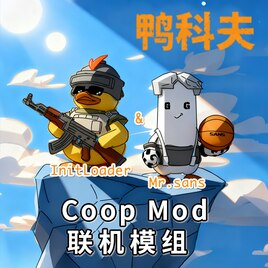
Operation steps:
- Click the "Subscribe" button on the right side of the page
- Click "Subscribe All" in the pop-up collection
- Wait for Steam to automatically download the MOD (you can check the progress in the Steam Download Manager)
Tip: Both players need to subscribe to and download the same MOD
Step 2: Configure Virtual LAN
Download and install Radmin VPN
Both players need to download and install Radmin VPN. This is a free virtual LAN tool that allows players who are not on the same LAN to connect.
Host players create a network
- Open Radmin VPN software
- Click "Create Network"
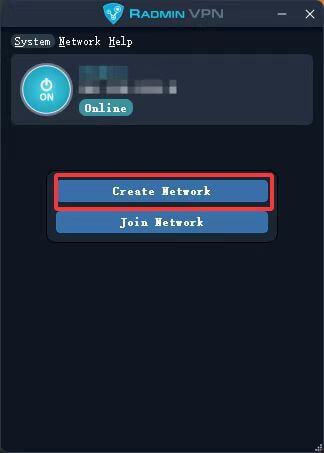
- Enter the network name and password
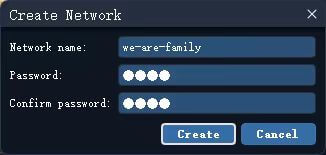
Recommendation: Set an easy-to-remember network name and password to facilitate client players to join
Client players to join the network
- Open the Radmin VPN software
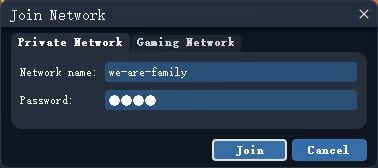
- Click "Join" Network" (Join the network)
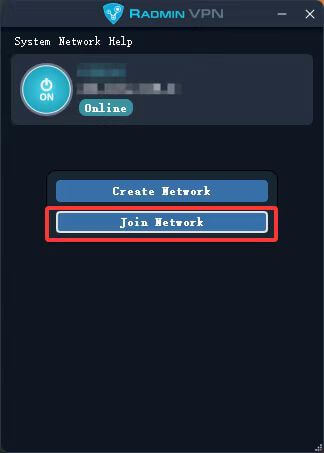
- Enter the network name and password provided by the host player
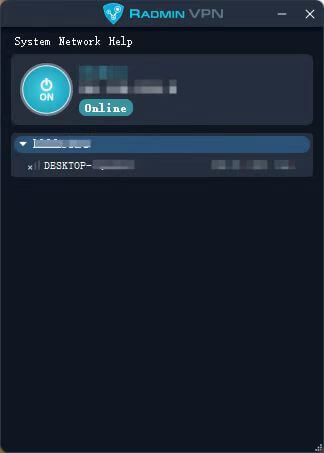
- After joining successfully, host players can see in the list that the client has been connected
Step 3: In-game configuration
Enable MOD
- Start the game "Escape From Duckov"
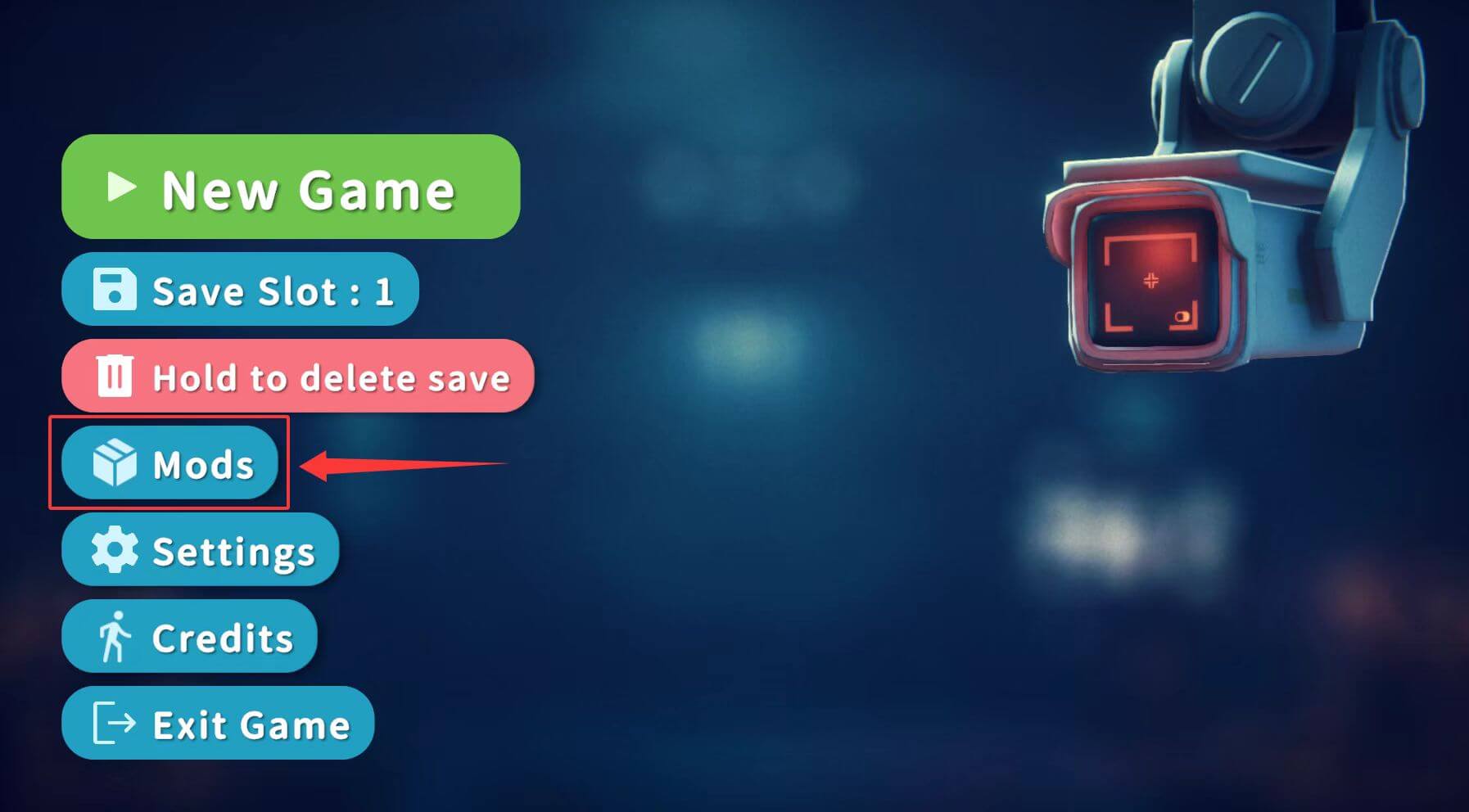
- Click "MOD" on the main menu to enter MOD Management interface
- Check the online related MODs, Pay attention to the online MODs Must be placed at the end of the list
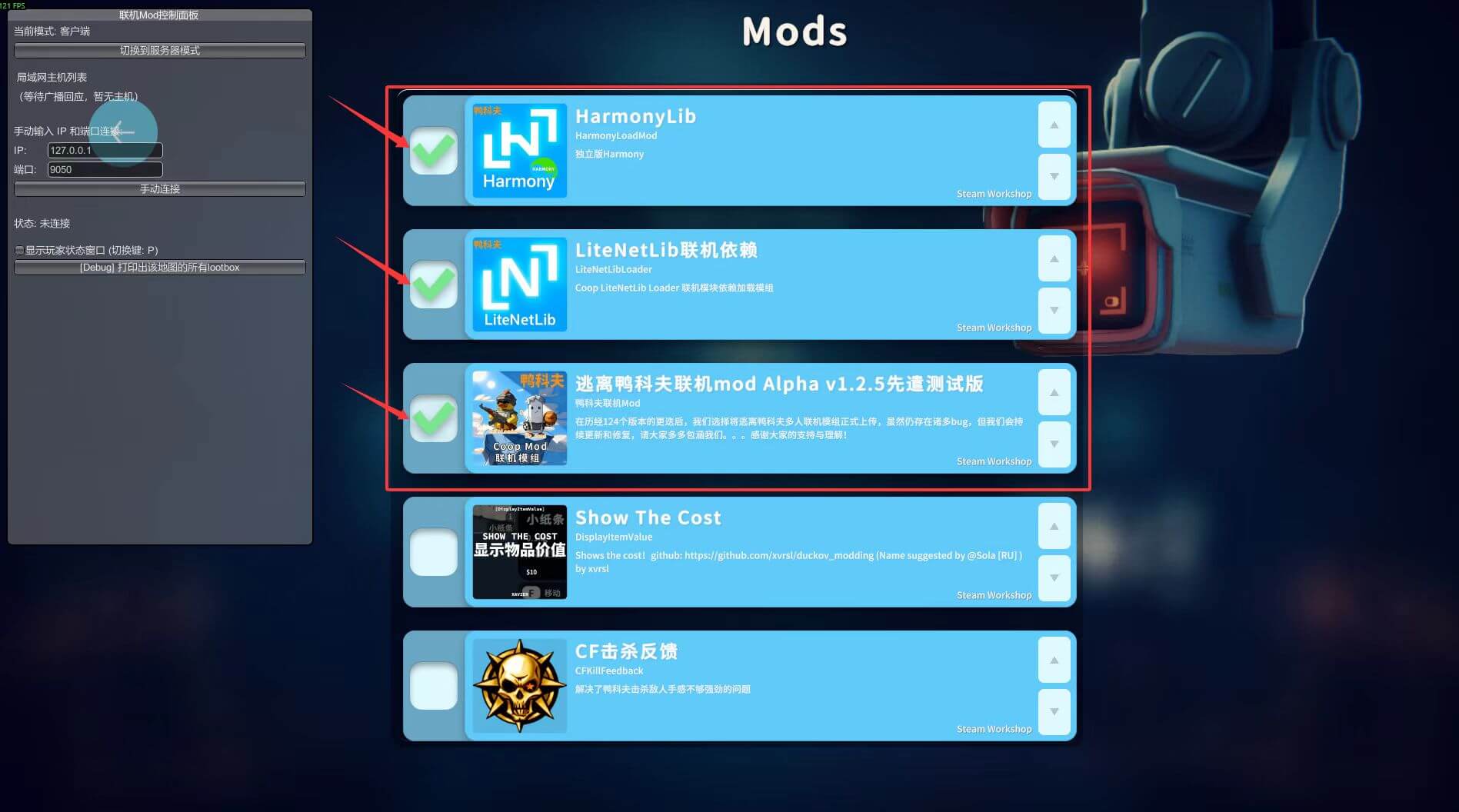
- If the console is enabled MOD, a console window will pop up, minimize it
Restart the game and connect
- Follow the prompts to restart the game
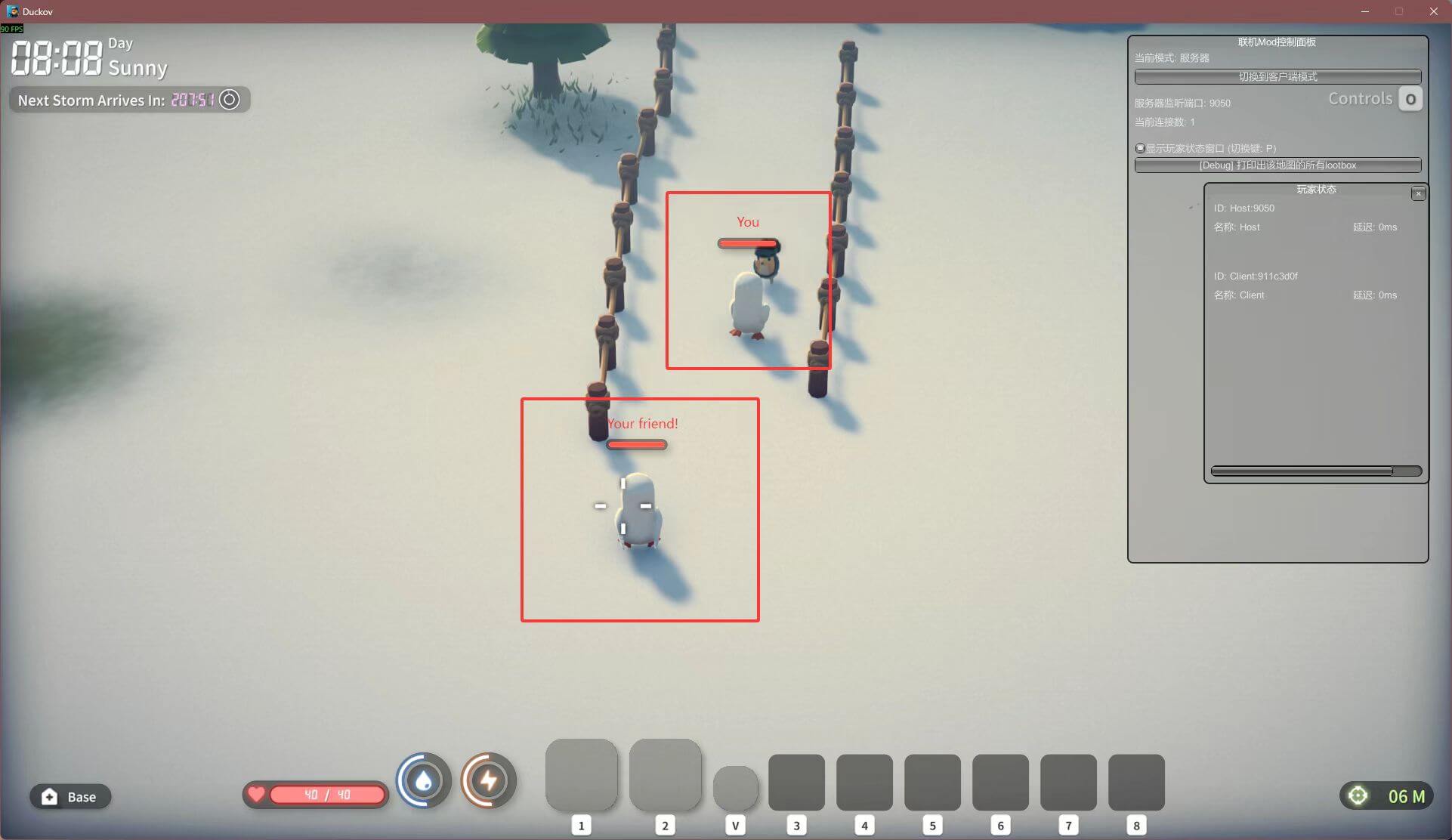
- After restarting, you will see an online floating window on the left side of the game
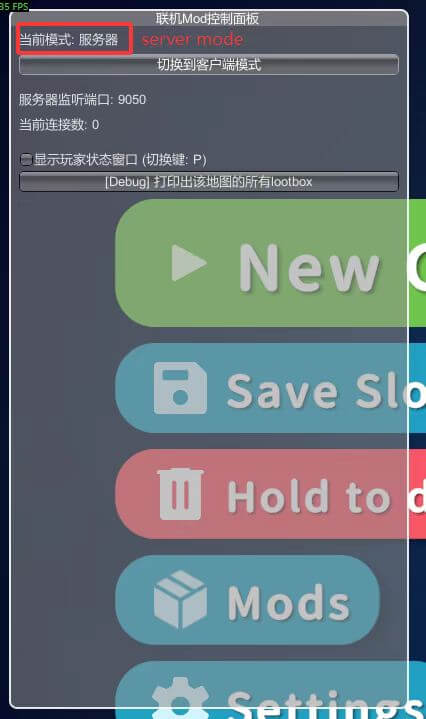
- Console players: Click "Switch to server mode" and the mode will change to server
- Client players:
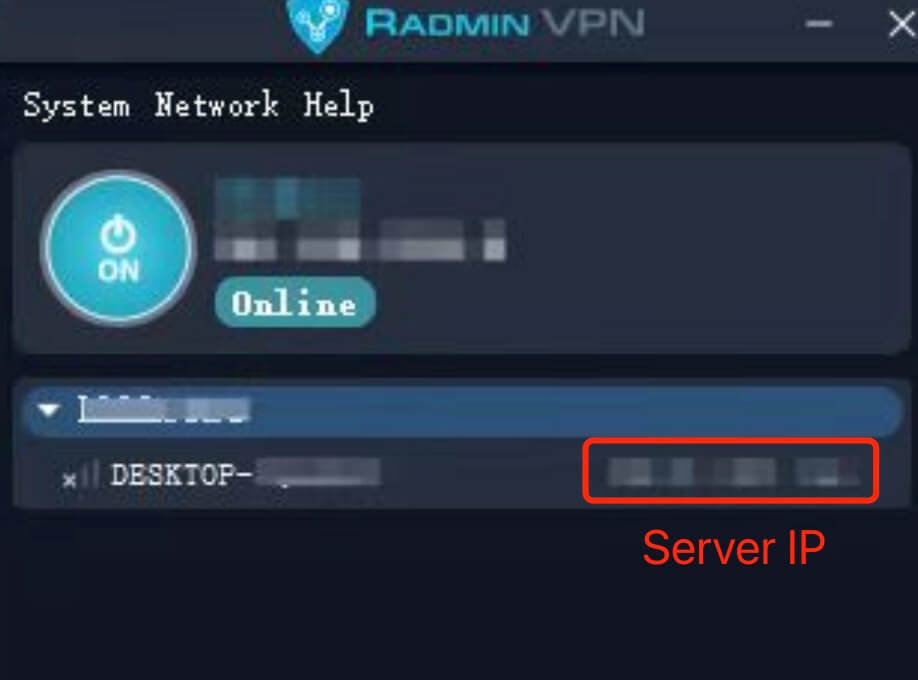
View the host player's IP address in Radmin VPN and fill in the IP address in the in-game floating window. In the input box click "Manual Connection"
- After the connection is successful, the floating window will display the connection status
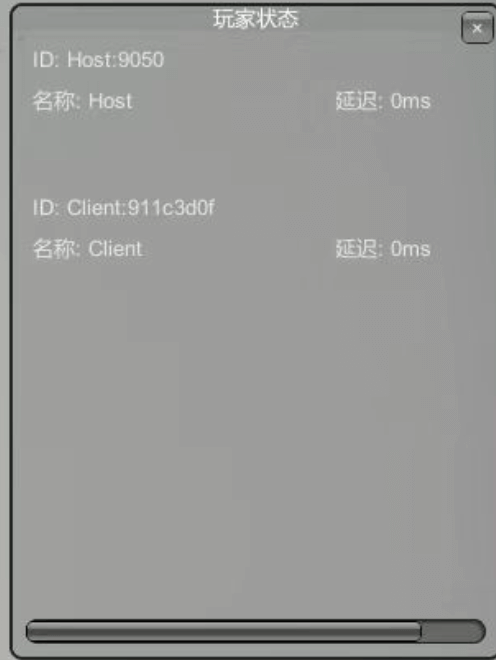
Step 4: Start the game
- Host player creates or loads a save
- Both players press J at the same time The key means ready
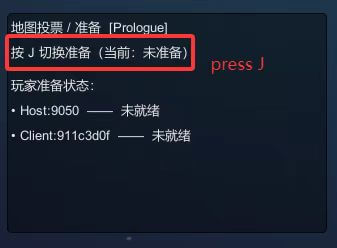
- After both people are ready, they can officially enter the game and start the online adventure!
Notes
⚠️ Important:
- The MOD list and order enabled by the two players must be exactly the same
- The MOD version also needs to be consistent
- Maintain Radmin VPN during the online process Connection status
- If you encounter connection problems, check whether the firewall settings are blocking the game or Radmin VPN
FAQ
Q: What should I do if I cannot connect?
A: Confirm the following points:
- Whether Radmin VPN is connected normally
- Whether the MOD lists of both parties are completely consistent
- Whether the firewall allows communication between the game and Radmin VPN
- Try to restart the game and Radmin VPN
Q: Can more than 2 people connect online?
A: Currently the online MOD only supports 2 people online
Q: How to synchronize archive data?
A: The archive is managed by the host player, and the progress of the client player will not be saved separately
About this MOD
Escape From Duckov Online Mod | 2025.10.28 | Fully open source
This MOD has been fully open source on Github. Code contributions, issue submissions and improvement suggestions are welcome.
Github warehouse address: https://github.com/Mr-sans-and-InitLoader-s-team/Escape-From-Duckov-Coop-Mod-Preview
人気記事
すべての記事を見るEscape From Duckov Special Conditions Fish Guide: Weather, Time and Bait
Compile the fish appearance map, day and night weather and bait requirements for Escape From Duckov's special conditions, and share practical methods for finding fish schools and fishing spots on rainy days.
Escape From Duckov practical module recommendations and installation tutorials
It is recommended to display the Escape from Duckov module that displays the value, rarity, income and convenient operation of items without changing the balance, and explains how to subscribe to the creative workshop, enable it and troubleshoot conflicts.
Escape From Duckov Fishing Guide: Quick Check on Fish Spots, Fish and Conditions
Summarize fishing spots on the Escape From Duckov map, and organize fish names, time, weather and bait conditions to quickly find target fish and complete fishing tasks.
How to get the Escape from Duckoff Storm Suit and Helmet
Explain the difference between the storm work suit and the space protection suit, as well as the acquisition location and wearing rules, and analyze the damage caused by space disturbance and space distortion and the use of protective needles.
Analysis of aiming time mechanism and equipment of Escape from Duckov
Dismantling the calculation method of the real aiming time of Escape from Yakov, distinguishing the aiming time of firearms, hip-fire dispersion and aiming dispersion, and giving ideas for accessories of weapons such as M107.